
An income certificate is an important document issued to Indian citizens that state their annual income. Income certificate is used to make the citizens of a state eligible for various schemes offered by the Central or State Government. Earlier, one has to mandatorily visit the Circle Office to apply for an income certificate. The digital services provided by the Government of Assam now enable everyone to apply for the same from their home itself. The Government of Assam State Service Delivery Gateway enables a citizen to apply for different services online for better convenience. It currently provides 46 services online.
Supporting documents required to get Income Certificate are –
- Scan copy of application form (Click here to download the application form)
- Address proof
- Identity proof
- Salary slip (if employed)
- Land revenue receipt (on verification by LM in case of farmer)
- Any Other documents (Any voter list, Gaon Burrah Certificate,Land Revenue Payment Receipt,etc.)
Before you begin the online process, make sure you have properly filled up the application form and scanned the required documents. You have to pay an amount of Rs 30 to submit the form. Please note that the portal accepts jpeg, jpg and pdf formats with file sizes not exceeding 500kb.
Now follow these steps to apply for income certificate online:
Step 1: Search “e-District AMTRON” in Google or any equivalent search engine OR You can directly visit the website by clicking on this link.


Step 2: Click on “e-District AMTRON” as shown below:
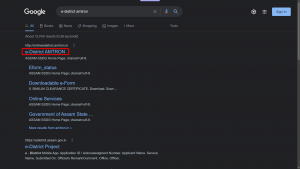
Step 3: Sign in to the portal. Make sure you are registered first. If you have not registered to the e- district amtron portal yet, please refer to our blog “How to Register in e-District Assam State Portal?” and complete the sign-in and registration process to continue the next steps.
Step 4: Click on “eGovernance Services”

Step 5: Enter your E-mail Address and Username/Screen Name.
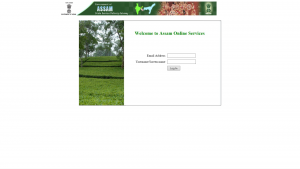
Step 6: Search for “Income Certificate” on Search E-forms by Title bar
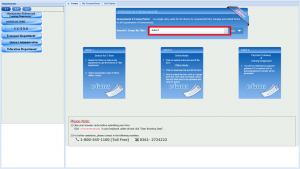
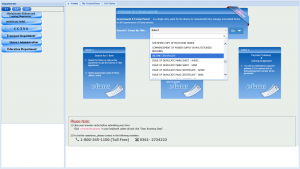
Step 7: Click on “Online”
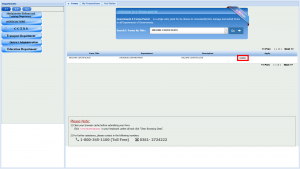
Step 8: Click on “Submit Online”
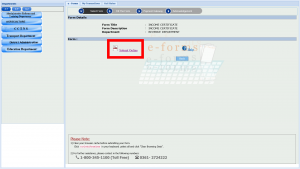
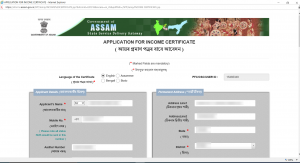
Step 9: Fill up the form and upload all the required documents. Click on “Submit” once you are done. Please note that the portal accepts jpeg, jpg and pdf formats with file sizes not exceeding 500kb.
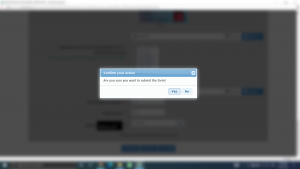
Step 10: Now you have to pay an amount of Rs 30 to complete your submission. Click on “Pay”
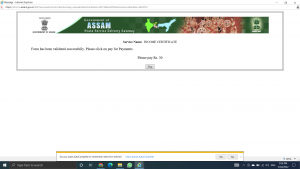
Step 11: Click on “Click to proceed” below the Pay U Money icon
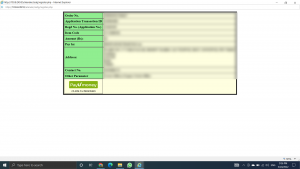
Step 12: Click on “Proceed to Pay”
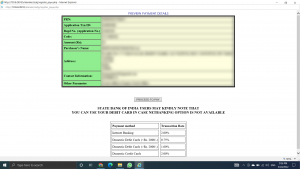
Step 13: The portal offers various payment methods to complete your transaction. You can choose any of the following
- Debit Card/ Credit Card/ ATM
- UPI Merchant (Google Pay, PhonePe, Amazon Pay, Paytm, etc.)
- Net Banking (Please check if your bank is available)
- Wallet (Amazon Pay wallet, Paytm wallet, etc.)
Step 14: Once you are done paying the Application Fees, an acknowledgment receipt will be provided to you by the portal. Don’t forget to save the application receipt. You can also print it if required.
Congratulations you have now successfully applied for your Income Certificate. Please do let us know in the comment section if you have any problems regarding any of the steps.
The certificate generally gets delivered within 10 days of your application. Any updates regarding the same will be notified on your registered mobile number.
How to track your application and download your Income Certificate?
Step 1: Search “e-District AMTRON” in Google or any equivalent search engine OR You can directly visit the website by clicking on this link.
Step 2: Click on “e-District AMTRON” as shown below:
Step 3: Sign in to the portal.
Step 4: Click on “eGovernance Services”
Step 5: Enter your E-mail Address and Username/Screen Name.
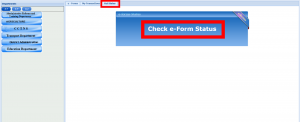
Step 6: Click on “Get Status” and then “Check E-Form Status”
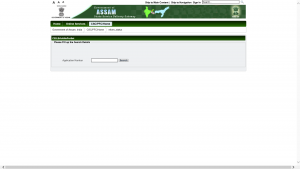
Step 7: Enter your application Number. You will find your application number in the acknowledgment receipt you received on the successful submission of your application.
Step 8: You can now check the status of your application.
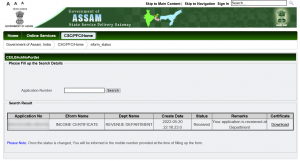
You can download your certificate when approved by clicking the “Download” link at the right corner of the table.